Monitoreando un Linux
Herramientas de Monitorización de Servidores Linux
Monitorización de ancho de banda
Esto es muy importante, ya que al monitorear cuanto ancho de banda consume un servidor en tiempo real podemos determinar cuales son sus horas pico y así optimizarlo. Para monitorear esto recomiendo el programa iptraf. Con este programa podrán monitorear todo lo que esta sucediendo en nuestra interface de red. Les adjunto algunas imágenes:


Monitorización de consumo de CPU y Memoria
Otra de las tareas de un sysadmin es monitorear el consumo de CPU y Memoria (RAM y SWAP), linux viene con el comando “top”. A mi en lo personal no me gusta, así que uso el programa htop. Este programa es muy completo ya que nos detalla el consumo de CPU y Memoria por proceso, así como el consumo general de los recursos del sistema. Es mucho mas amigable a comparación del top normal. Incluso conforme se va usando el procesador o los núcleos del procesador el programa lo indica de una manera “gráfica” tal como lo muestra la siguiente imagen que tome de un servidor en producción:

Monitorización de consumo de disco duro
Cada cierto tiempo es necesario que entremos a revisar cuando espacio en disco hay libre en los servidores que manejamos. Para saber el espacio en disco duro se ejecuta el comando “df” en linux. A mi en lo personal no me gusta, prefiero uno mas “amigable” así que utilizo uno llamado discus. Este programa es que te indica cuanto espacio esta usado y cuando espacio hay libre, así como los porcentajes de los mismos. Aquí les adjunto una foto con la comparación del “df” con el “discus”.

Monitorización de I/O
Para que quede claro que es el I/O.
En computación, entrada/salida, también abreviado E/S o I/O (del original en inglés input/output), es la colección de interfaces que usan las distintas unidades funcionales (subsistemas) de un sistema de procesamiento de información para comunicarse unas con otras, o las señales (información) enviadas a través de esas interfaces. Las entradas son las señales recibidas por la unidad, mientras que las salidas son las señales enviadas por ésta.
En términos mas “amigables” es la entrada y salida de datos, que en realidad significa actividad del disco duro. Entre mas sea la actividad de READ (lectura) y WRITE (escritura) mas alto va a ser el I/O y por consiguiente mas lento se pondrá el servidor. Por eso es que para servidores que van a servir sitios con mucho trafico, recomiendan discos duros SCSI o SAS por su alto rendimiento a comparación de otros discos duros (como por ejemplo IDE o SATA) por consiguiente su I/O va a ser menor y va a poder servir data mucho mas rapido.
Para monitorear el I/O yo utilizo la herramienta “iotop” (se necesita python 2.5 y un kernel 2.6.20 para que funcione) es una interfaz simple que indica que proceso esta escribiendo o leyendo en el disco duro, tal como lo muestra la siguiente imagen:

Monitorización de peticiones de DNS
Si administras un servidor de DNS, en alguna ocasión vas a querer saber cuantas peticiones tu servidor de DNS tu servidor recibe. Para monitorear esto utilizo el programa dnstop con este se puede monitorear cuantas peticiones esta teniendo tu servidor ya sea por clase de dominio .net .org, direcciones ip, por dominio o por sub dominios.
Para ejecutarlo solo ejecutas el comando:
dnstop eth1
Tienes que especificar la interface en la cual quieres que “escuche” el programa. Presionando los botones de 1 2 3 4 puedes ver los diferentes tipos de reportes que tiene.
Adjunto imagen del programa:

Monitorización de trafico WEB
Si coleccionas dominios y tienes miles de visitas únicas diarias en algún momento te puede haber surgido la necesidad de monitorizar ese tráfico para decidir si tu servidor es suficiente o por el contrario necesitas contratar uno más potente…
Suponiendo que tienes almenos un VPS (mejor si es dedicado) puedes usar tu panel de control o mejor puedes conectar con tu shell (consola de comandos) vía SSH (usando un programa comoPutty), entonces podemos hablar de varios niveles para comprobar la carga de tu servidor desde el más básico hasta algo un poco más sofisticado.
- El más básico: escribes el comando uptime que te dará como resultado una línea con 3 valores de load average al final de la misma refiriéndose a la carga del último minuto, últimos 5 minutos y últimos 15 minutos respectivamente, lo ideal es que cada uno de estos valores esté la mayor parte del tiempo por debajo de 1 (si tienes 1 core) o por debajo de n (si tienes n cores).
- El más común: escribes el comando top y puedes ver en tiempo real y con refresco automático todos los procesos que se están ejecutando en tu máquina indicando la carga de CPU, memoría, etc… de cada uno, por defecto el tiempo de refresco es 3 sg pero puedes cambiarlo pulsando la tecla s y también puedes mostrar sólo los procesos con un determinado nombre, por ejemplo los apache ya que son los más interesantes en la mayoría de los casos pulsando la tecla u seguida del nombre en cuestión.
- El más completo (monitorización de tráfico web en tiempo-real): es el comando apachetoppero no viene normalmente por defecto y hay que instalarlo (puedes descargarlo aquihttp://freshmeat.net/projects/apachetop), una vez hecho puedes escribir el comando apachetop -f path (siendo path la ruta absoluta del log de alguno de tus dominios o virtualhosts), también puedes indicar varios logs escribiendo apachetop -f path -f path -f path etc… Mientras ves la información en pantalla puedes usar los cursores arriba y abajo para seleccionar un determinado item y pulsar los cursores derecha o izquierda para mostrar u ocultar la información ampliada del item seleccionado, por ejemplo el ‘referral’.
- El que incluye Apache: There are tools for Apache web server allowing a real-time analysis of the web traffic: log files can be used by specialised software to develop a comprehensive and complete analysis of the traffic.
The output “server-status” can be displayed as a command line, simply by launching the “apachectl status” or “apachectl fullstatus” or online at http://servername/server-status.
For the server status to be accessible, the server must be compiled with mod_status module and its use should be allowed in the configuration file.
However, these methods give too much information to be able to make optimal use of it, especially on servers with a large traffic. - Si sólo necesitas saber como vas de memoria RAM: puedes usar el comando free.
apachetopLa mayoría de nosotros estamos a cargo de un servidor que sirve paginas web, es muy importante el monitoreo en tiempo real para saber que archivos estamos sirviendo, cuantas peticiones por segundo estamos manejando y el trafico que estamos teniendo (en megas). El servidor web mas usado es apache, yo utilizo la herramienta llamada “apachetop“.
Con este programa podemos monitorear que archivos servimos con mayor frecuencia, cuantos bytes/kylobytes/megabytes servimos, cuantas peticiones por segundo, peticiones totales y un promedio general de todo lo que sirve el apache.
Adjunto una imagen del apachetop corriendo en un servidor en producción:

Ya que son bienvenidas las sugerencias, ¿Nunca intentaste con ntop? Desglosando el tráfico de un servidor es fenomenal… El hecho de que use gráficos además ayuda bastante a la hora de darse una idea generalizada del tráfico de la red.
La herramienta apachetop nos da información en tiempo real muy similar a top, para poder instalarla es necesario hacer los siguiente:
También esta herramienta nos ayuda a generar estadísticas de acceso.
Instalación en Debian/Ubuntu y derivados:
# apt-get install apachetop
Instalación en Centos/Fedora/RHEL, para este tipo de distribuciones es necesario tener habilitado repositorio de DAG.
# yum install apachetop
Instalación via ssh
# wget http://www.webta.org/apachetop/apachetop-0.12.6.tar.gz
# yum install readline-devel
# yum install ncurses-devel
# tar xvzf apachetop-0.12.6.tar.gz
# cd apachetop-0.12.6
./configure
make
make install
# yum install readline-devel
# yum install ncurses-devel
# tar xvzf apachetop-0.12.6.tar.gz
# cd apachetop-0.12.6
./configure
make
make install
La forma de instalarlo puede variar según la distribución de linux que tengas o según tus gustos personales así como las posibles aplicaciones, en cualquier caso puedes ver como va tu servidor y decidir si te quedas con el, contratas uno superior o por el contrario lo bajas de nivel para optimizar tu gasto, si quieres proponer otras formas de monitorizar la actividad de tu servidor o discutir las propuestas usa la zona de comentarios y los lectores te lo agradecerán.
Las opciones de configuracion son mas extensibles, solo hay que buscar la ayuda de Apachetop.
La forma más sencilla de ejecutar nuestro monitor de mensajes es la siguiente:
# apachetop -f [fichero de mensajes access.log]
si hemos compilado el programa con la opción with-logfile, el parámetro f no es necesario. La ejecuccion del comando convertirá nuestra consola en algo similar a esto:
# apachetop -f /usr/local/apache/logs/access_log
Como podemos observar, la similitud con el comando top es más que evidente. Las cinco primeras líneas presentan información interesante relativa a los procesos en curso.
last hit: 17:33:26 atop runtime: 0 days, 00:03:34 17:33:38
All: 4 reqs ( 0.0/sec) 3598.0B ( 24.0B/sec) 899.5B/req
2xx: 2 (50.0%) 3xx: 2 (50.0%) 4xx: 0 ( 0.0%) 5xx: 0 ( 0.0%)
R ( 30s): 2 reqs ( 0.1/sec) 1799.0B ( 60.0B/sec) 899.5B/req
2xx: 1 (50.0%) 3xx: 1 (50.0%) 4xx: 0 ( 0.0%) 5xx: 0 ( 0.0%)
All: 4 reqs ( 0.0/sec) 3598.0B ( 24.0B/sec) 899.5B/req
2xx: 2 (50.0%) 3xx: 2 (50.0%) 4xx: 0 ( 0.0%) 5xx: 0 ( 0.0%)
R ( 30s): 2 reqs ( 0.1/sec) 1799.0B ( 60.0B/sec) 899.5B/req
2xx: 1 (50.0%) 3xx: 1 (50.0%) 4xx: 0 ( 0.0%) 5xx: 0 ( 0.0%)
La primera línea contienen la hora del último acceso, el tiempo de ejecución del comando y la hora actual.
last hit: 17:31:08 atop runtime: 0 days, 00:02:29 17:32:33
Las cuatro líneas siguientes presentan la información por pares:
En la segunda y tercera linea se contemplan los datos almacenados desde la ejecución del comando y en la curarta y quita se presenta la información actual en tiempo real, permaneciendo allí los datos durante un tiempo por defecto que se puede parametrizar.
Atendiendo al primer par, la segunda línea, de izquierda a derecha, contiene el total de solicitudes que el programa ha procesado desde su ejecución, el número de peticiones por segundo, el total de datos transferidos, el volúmen de transferencia de esos datos por segundo y, por último, una media de cantidad de datos por solicitud.
All: 4 reqs ( 0.0/sec) 3598.0B ( 24.0B/sec) 899.5B/req
La tercera línea presenta la información de respuesta del servidor por código y se divide en la cantidad de respuestas y, entre paréntesis, su porcentaje con respecto al total.
2xx: 2 (50.0%) 3xx: 2 (50.0%) 4xx: 0 ( 0.0%) 5xx: 0 ( 0.0%)
La cuarta y quienta línea muestran información idéntica al primer par, pero sólo se visualizará la media de los datos que se han leído desde el parámetro especificado durante la ejecución del programa. Por defecto, ese parámetro se establece en un valor treinta segundos. Mediante los parámetros H (hits) y T (time) podremos cambiar ese valor a nuestro antojo, lo cual reflejará distintos estados en el último par de líneas descrito.
ntop
Algunas capturas de lo que puede hacer ntop para simplificarte la vida:
cacti
Otro que uso bastante (y ya con la combinación de estos dos no necesito nada mas) es cacti. También con interface web pero con sensores para monitorear de todo un poco, desde hardware (uso de los discos, estado de los sensores de voltaje o temperatura, etc..) hasta tráfico en la red y carga del servidor.
Como tiene soporte para snmpwalk se puede desde una sola instancia de cacti monitorear varios servidores (o estaciones de trabajo) juntas.
Como tiene soporte para snmpwalk se puede desde una sola instancia de cacti monitorear varios servidores (o estaciones de trabajo) juntas.
De vez en cuando algún apache empieza a fallar regularmente y nos dedicamos a “probar” y a buscar entre docenas de valores con el objetivo de verlo cuando este fallando. Si recopilamos estos datos seguramente ahorraremos mucho tiempo y si encima los colocamos en una “bonita grafica” ya puede ser la ostia, trabajaremos la mitad y nuestros jefe/cliente percibira que hemos trabajado el doble  cosa que no viene mal si queremos mejorar nuestra calidad de vida.
cosa que no viene mal si queremos mejorar nuestra calidad de vida.
Asi que os propongo una cosa, si teneis un cacti en marcha os mirais esto:
y en el apache que quereis supervisar recoais el fichero de configuración añadiendo algo parecido a eso:
vi /etc/httpd/conf/httpd.conf
#
# ExtendedStatus controls whether Apache will generate “full” status
# information (ExtendedStatus On) or just basic information (ExtendedStatus
# Off) when the “server-status” handler is called. The default is Off.
#
ExtendedStatus On
<Location /server-status>
SetHandler server-status
Order deny,allow
Deny from all
Allow from <IP_DE_TU_CACTI>
</Location>
La parte de ExtendedStatus es importante, ojo.
y a esperar que se dispare algo.
mod_status
Monitorear el estado del servidor Apache.
Monitorear el estado del servidor Apache.
Pegamos el siguiente código en /etc/apache2/httpd.conf o en /etc/apache2/apache2.conf, sustituyendo la ip de “Allow from” por la del equipo desde el cual se va a acceder al monitoreo (pueden ser varias ips o nombres de host separados por un espacio).
<Location /server-status>
SetHandler server-status
Order deny,allow
Deny from all
Allow from 192.168.2.2
</Location>
SetHandler server-status
Order deny,allow
Deny from all
Allow from 192.168.2.2
</Location>
ExtendedStatus On
Reiniciar apache
# /etc/init.d/apache2 restart
En el navegador disponemos de varias opciones de monitoreo:
http://192.168.2.2/server-status (básica)
http://192.168.2.2/server-status?refresh=5 (refrescará los datos cada 5”)
http://192.168.2.2/server-status?auto (muestra los datos sin HTML)
http://192.168.2.2/server-status?notable (muestra los datos sin tablas. Apropiado para navegadores sin interfaz gráfica))
http://192.168.2.2/server-status?refresh=5 (refrescará los datos cada 5”)
http://192.168.2.2/server-status?auto (muestra los datos sin HTML)
http://192.168.2.2/server-status?notable (muestra los datos sin tablas. Apropiado para navegadores sin interfaz gráfica))
Monitoreo de puertos abiertos
Otra de las tareas de un sysadmin es estar al tanto de que puertos hay abiertos en un servidor. Como lo dice la regla, si un servicio no te sirve, quitalo del sistema. Para monitorear puertos uso la herramienta llamada nmap.
Con el comando:
nmap -v 127.0.0.1
Saque un listado de puertos abiertos en el servidor. Si su servidor tiene varias direcciones IP es importante que hagan un escaneo de puertos a todos los IP.
Adjunto imagen del resultado que muestra nmap:

Monitorizar rendimiento en Apache
A través de una entrada en los foros de la empresa en la que trabajo encuentro una interesante pregunta sobre aplicaciones que permitan medir el rendimiento de un servidor web y de las aplicaciones que corren sobre él.
Había trabajado con herramientas parecidas para IIS pero me interesa más Apache así que aquí van algunas herramientas útiles para monitorizar el rendimiento de un servidor Apache (todas son software libre):
La siguiente sirve para optimizar una web más que para monitorizar un servidor y creo que en alguna otra ocasión ya la he comentado:
YSlow
YSlow
Monitoreo del servidor MySQL
mtop
mtop permite monitorizar la instancia de MySQL en tiempo real. Muestra el uptime de la instancia, el número de queries ejecutadas por segundo, la lista de slow queries, el número de threads activos, etc.
La instalación en entornos Debian/Ubuntu es muy sencilla:
sudo apt-get -y install mtop
Usa el siguiente comando para monitorizar las estadísticas del servidor MySQL cada 1 segundo de intervalo.
mtop -se 1
mytop
To solve MySQL problems or to optimize MySQL server you need to use special tool called mytop. It is a UNIX top command clone for MySQL server. It updates every few seconds, so you can get a reasonable look at your SQL performance. It is capable of displaying a huge amount of information.
Please note that it needs Perl and other CPAN package to run. If you are using Debian then just install it using apt-get command or Download it from official web site:
Debian/Ubuntu
# apt-get -y install mytop
Fedora/CentOS
# yum -y install mytop
How do I use mytop command?
mytop command needs username and password to access MySQL server. For example if your username is admin and password is 123456 then you can start mytop as follows:
mytop command needs username and password to access MySQL server. For example if your username is admin and password is 123456 then you can start mytop as follows:
$ mytop -u admin -p 123456
 You can also specify database (phpbb) to monitor:
$ mytop -u admin -p 123456 -d phpbb
You can store this information in ~/.mytop file:
vi ~/.mytop
Add config text as follows:
user=admin
pass=123456
host=mysql0.hosting.some.com
db=imail
delay=10
port=3306
socket=
batchmode=0
header=1
color=1
idle=1
pass=123456
host=mysql0.hosting.some.com
db=imail
delay=10
port=3306
socket=
batchmode=0
header=1
color=1
idle=1
mytop is capable of displaying a large amount of information and it supports lots of keyboard shortcut too, so be sure to read the man page and documentation of mtop.
Fedora/CentOS – Instalar mtop
Vamos a ver como instalar mtop. Mtop, es un software desarrollado para trabajar contra el motor de base de datos Mysql. Mtop monitoriza MySQL Server mostrando las queries que están tardando más tiempo en completarse. Incluye características como zooming sobre el proceso para mostrar la query completa, explicación de la optimización de la query y matar queries. Además, nos aporta estadísticas de rendimiento del servidor, información de la configuración y consejos de tunning.
1. Instalación
Antes de la instalación necesitamos instalar un rpm no oficial del repositorio de DagWiers
1
2 |
# wget http://dag.wieers.com/rpm/packages/perl-Curses/perl-Curses-1.23-1.el5.rf.x86_64.rpm
# rpm -ivh perl-Curses-1.23-1.el5.rf.x86_64.rpm |
1
2 3 4 5 6 7 |
# cd /usr/local/src
# wget http://downloads.sourceforge.net/project/mtop/mtop/v0.6.6/mtop-0.6.6.tar.gz?r=http%3A%2F%2Fsourceforge.net%2Fprojects%2Fmtop%2Ffiles%2Fmtop%2Fv0.6.6%2F&ts=1304411062&use_mirror=ignum # tar xf mtop-0.6.6.tar.gz # cd mtop-0.6.6 # perl Makefile.PL # make # make install |
Nos debería salir algo así
1
2 3 4 5 6 7 8 9 10 |
-bash-3.2# make install
Manifying blib/man1/mkill.1 Manifying blib/man1/mtop.1 Installing /usr/local/bin/mkill Installing /usr/local/bin/mtop Installing /usr/local/lib/perl5/5.8.8/cpan2spec.pl Installing /usr/local/share/man/man1/mtop.1 Installing /usr/local/share/man/man1/mkill.1 Writing /usr/local//lib64/perl5/5.8.8/x86_64-linux-thread-multi/auto/mtop/.packlist Appending installation info to /usr/local//lib64/perl5/5.8.8/x86_64-linux-thread-multi/perllocal.pod |
2. Ejecución
Ahora deberíamos poder ejecutar mtop de la siguiente forma
# /usr/local/bin/mtop –host=localhost –dbuser=root –password=password
y veremos algo así
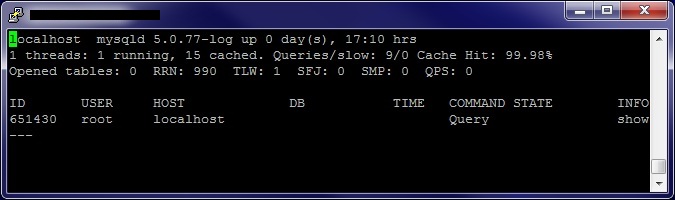
3. Explicación de Valores
n Threads: running, cached
Los n Threads representa cuantos threads ha alojado mysqld. Un thread es alojado por cada conexión de usuario. Los threads adicionales son usados para replicación.
n Threads: running, cached
Los n Threads representa cuantos threads ha alojado mysqld. Un thread es alojado por cada conexión de usuario. Los threads adicionales son usados para replicación.
Queries/slow: Total queries / Total SLOW QUERIES
El primer número es el total de queries enviadas al servidor desde el último inicio o el último FLUSH STATUS. El segundo número es el número de queries que han tomado más tiempo que el la variable long_query_time
El primer número es el total de queries enviadas al servidor desde el último inicio o el último FLUSH STATUS. El segundo número es el número de queries que han tomado más tiempo que el la variable long_query_time
Cache Hit: Cache hit ratio
Esto es el porcentaje de tiempo que una lectura de key es accedida desde el key buffer cache.
Esto es el porcentaje de tiempo que una lectura de key es accedida desde el key buffer cache.
Opened tables: tables opened
MySQL tiene cache para tablas abiertas. Si ‘opened tables’ es algo alta, puede que tu cache sea demasiado pequeña.
MySQL tiene cache para tablas abiertas. Si ‘opened tables’ es algo alta, puede que tu cache sea demasiado pequeña.
RRN: Handler_read_rnd_next
Número de peticiones para lectura de la siguiente fila en el archivo de datos (datafile). Esto será alto si estás haciendo escaneo de tablas. Generalmente esto sugiere que tus tablas no están siendo indexadas adecuadamente o que tus queries no están diseñadas para tomar ventaja de los índices.
Número de peticiones para lectura de la siguiente fila en el archivo de datos (datafile). Esto será alto si estás haciendo escaneo de tablas. Generalmente esto sugiere que tus tablas no están siendo indexadas adecuadamente o que tus queries no están diseñadas para tomar ventaja de los índices.
TLW: Table_locks_waited
Número de veces que una table lock no pudo ser acceda inmediatamente y se tuvo que esperar. Si es alto, y tu tienes problemas de rendimiiento, debes optimizar primero tus queries y entonces partir tus tablas o usar replicación.
Número de veces que una table lock no pudo ser acceda inmediatamente y se tuvo que esperar. Si es alto, y tu tienes problemas de rendimiiento, debes optimizar primero tus queries y entonces partir tus tablas o usar replicación.
SFJ: Select_full_join
Número de joins sin keys (si esto no es 0, deberías comprobar adecuadamente los índices de tus tablas)
Número de joins sin keys (si esto no es 0, deberías comprobar adecuadamente los índices de tus tablas)
SMP: Sort_merge_passes
Número de “merge”
Number of merges passes the sort algoritm have had to do. Si este valor es alto deberías considerar incrementar el sort_buffer
Número de “merge”
Number of merges passes the sort algoritm have had to do. Si este valor es alto deberías considerar incrementar el sort_buffer
QPS: Questions per second
El número total de comandos SQL manejados por el servidor MySQL desde su inicio o el último FLUSH STATUS.
El número total de comandos SQL manejados por el servidor MySQL desde su inicio o el último FLUSH STATUS.
mtop [–host={mysql_host}] [–dbuser={mysql_user}]
[–password={mysqluser_pw}] [–seconds={refresh}] [–[no]idle]
[–filter-user={regex}] [–filter-host={regex}] [–filter-db={regex}]
[–filter-command={regex}] [–filter-state={regex}] [–filter-info={{regex}}]
[–fold-select-columns]
[–user={user}] [–manualrefresh] [–slow={seconds}] [–vs|veryslow={seconds}]
[–vvs|veryveryslow={seconds}]mtop –helpmtop –version
Links
- http://mtop.sourceforge.net/
- http://sourceforge.net/projects/mtop/files/
- http://downloads.sourceforge.net/project/mtop/mtop/v0.6.6/mtop-0.6.6.tar.gz
- http://opensourceit.blogspot.com/2008/06/how-to-install-mtop-for-mysql-on-rhel.html
- http://www.howtolounge.com/555/how-to-install-mtop-on-centos/
- http://blog.mysqltuner.com/faq/
- http://blog.scoutapp.com/articles/2010/08/19/mysql-tuning-tips-with-scout
Open Tools for MySQL Administrators
by Baron Schwartz
10/19/2006
http://onlamp.com/pub/a/mysql/2006/10/19/mysql-tools.html
MySQL provides some tools to monitor and troubleshoot a MySQL server, but they don’t always suit a MySQL developer or administrator’s common needs, or may not work in some scenarios, such as remote or over-the-web monitoring. Fortunately, the MySQL community has created a variety of free tools to fill the gaps. On the other hand, many of these are hard to find via web searches. In fact, web searches can be frustrating because they uncover abandoned or special-purpose, not ready-to-use projects. You could spend hours trying to find tools for monitoring and troubleshooting your MySQL servers. What’s a tool-seeker to do?
Relax! I’ve already done the work, so you won’t have to. I’ll point you to the tools I’ve actually found useful. At the end of this article I’ll also list those I didn’t find helpful.
This article is about tools to discover and monitor the state of your server, so I won’t discuss programs for writing queries, designing tables, and the like. I’m also going to focus exclusively on free and open source software.
Tools to Monitor Queries and Transactions
The classic tool for monitoring queries is Jeremy Zawodny’s mytop. It is a Perl program that runs in a terminal and displays information about all connections in a tabular layout, similar to the Unix
topprogram’s process display. Columns include the connection ID, the connection’s status, and the text of the current query. From this display you can select a query to EXPLAIN, kill a query, and a few other tasks. A header at the top of the display gives information about the server, such as version, uptime, and some statistics like the number of queries per second. The program also has some other functions, but I never found myself using them much.
There are mytop packages for various GNU/Linux distributions, such as Gentoo and Fedora Core, or you can install one from Jeremy’s website. It is very small and has minimal dependencies. On the downside, it hasn’t been maintained actively for a while and doesn’t work correctly with MySQL 5.x.
A similar tool is mtop. It has a tabular process display much like mytop, and although it lacks some features and adds others, the two programs are very similar. It is also a Perl script and there are installation packages for some operating systems, or you can download it from SourceForge. Unfortunately, it is not actively maintained and does not work correctly on newer versions of MySQL.
Some programmers have also created scripts to output MySQL’s process list for easy consumption by other scripts. An example is this SHOW FULL PROCESSLIST script, available from the always-useful MySQL Forge.
My own contribution is innotop, a MySQL and InnoDB monitor. As MySQL has become increasingly popular, InnoDB has become the most widely used transactional MySQL storage engine. InnoDB has many differences from other MySQL storage engines, so it requires different monitoring methods. It exposes internal status by dumping a potentially huge amount of semi-formatted text in response to the
SHOW INNODB STATUS command. There’s a lot of raw data in this text, but it’s unusable for real-time monitoring, so I wrote innotop to format and display it conveniently. It is the main monitoring tool at my current employer.
Innotop is much more capable than the other tools I’ve mentioned, and can replace them completely. It has a list of processes and status information, and offers the standard functions to kill and explain queries. It also offers many features that are not in any other tool, including being able to list current transactions, lock waits, deadlock information, foreign key errors, I/O and log statistics, InnoDB row operation and semaphore statistics, and information on the InnoDB buffer pool, memory usage, insert buffer, and adaptive hash index. It also displays more standard MySQL information than mytop and its clones, such as compact, tabular displays of current and past status information snapshots. It is very configurable and has interactive help.
Installation is simple, because innotop is a ready-to-run Perl script, but there are no installation packages yet, so you must download it from my website.
There are also some web-based tools. There are two web-based mytop clones, phpMyTop andajaxMyTop. These are useful when you don’t have shell access and can’t connect remotely to your database server, but can connect from a web server. ajaxMyTop is more recent and seems to be more actively developed. It also feels more like a traditional GUI program, because thanks to Ajax, the entire page does not constantly refresh itself.
Another web-based tool is the popular phpMyAdmin package. phpMyAdmin is a Swiss Army Knife, with features to design tables, run queries, manage users and more. Its focus isn’t on monitoring queries and processes, but it has some of the features I’ve mentioned earlier, such as showing a process list.
Finally, if you need to monitor what’s happening inside a MySQL server and don’t care to–or can’t–use a third-party tool, MySQL’s own
mysqladmin command-line program works. For example, to watch incremental changes to the query cache, run the command:$ mysqladmin extended -r -i 10 | grep Qcache
Of course, innotop can do that for you too, only better. Take a look at its “V” mode. Still, this can be handy when you don’t have any way to run innotop.
Tools to Monitor a MySQL Server
Sometimes, rather than monitoring the queries running in a MySQL server, you need to analyze other aspects of the system’s performance. You could use standard command-line utilities to monitor the resources used by the MySQL process on GNU/Linux, or you could run Giuseppe Maxia’s helpful script to measure MySQL resource consumption. This tool recursively examines the processes associated with the MySQL server’s process ID, and prints a report on what it finds. For more information, read Giuseppe’s own article on the O’Reilly Databases blog.
The MySQL Forge website is an excellent place to discover tips, tricks, scripts, and code snippets for daily MySQL administration and programming tasks. For example, there’s an entry to help you measure replication speed, a “poor man’s query profiler” to capture queries as they fly by on the network interface, and much more.
Another excellent resource is mysqlreport, a well-designed program that turns MySQL status information into knowledge. It prints out a report of relevant variables, sensibly arranged for an experienced MySQL user. I find this tool indispensable when I have to troubleshoot a server without knowing anything about it in advance. For example, if someone asks me to help reduce load on a MySQL server that’s running at 100 percent CPU, the first thing I do is to run mysqlreport. I can get more information by glancing at its output than I could in 10 minutes of talking to the customer. It immediately tells me where to focus my efforts. If I see a high key read ratio and a high percentage of index scans, I can immediately look for large indexes and a key buffer that’s too small. That intuition could take many minutes to develop just by examining
SHOW STATUS.
The mysqlreport website has full information on how to install and use the program, but better yet, there are excellent tutorials on how to interpret its output, with real examples. Some of these go into detail on MySQL internals, and I recommend them to any MySQL developer.
Another common task is setting up automated systems to monitor your server and let you know if it’s alive. You could write your own monitor, or you could just plug in a ready-made one. According to aMySQL poll, Nagios is the most popular tool for doing this. There’s also a Watchdog mysql monitor plugin for mon, the Linux scheduling and alert management tool. We currently use a home-grown system at my employer, but we’re looking at using Nagios soon.
Tools I Didn’t Find Useful
The Quicomm MySQL Monitor is a web-based administration tool similar to phpMyAdmin, not a monitor in the same sense as mytop or innotop. It offers relatively few features compared to phpMyAdmin.
Another web-based tool is MySysop, which is billed as a “MySQL system optimizer”, though it certainly doesn’t do anything on its own to optimize a MySQL system. It offers recommendations I would not trust without doing enough investigation to arrive at the same conclusions. By the time I could install and run this system, I’d have long since run mysqlreport.
Finally, I’ve never understood how to even use the Google mMaim (MySQL Monitoring And Investigation Module). It is part of Google’s open source code contributions, and Google probably uses it internally to monitor its servers. However, it’s not obvious to the rest of the world how to do this, as evidenced by the mailing list . The mailing list also reveals that Google released the code simply for the sake of releasing it. While I appreciate the gesture, I can’t find any use for the code.
. The mailing list also reveals that Google released the code simply for the sake of releasing it. While I appreciate the gesture, I can’t find any use for the code.Conclusion
If you’re trying to find tools for your own work, I recommend innotop and mysqlreport, and a healthy dose of command-line competence. I used to rely on mytop for my routine monitoring, but now I use innotop, because it shows much more information, including all-important details about transactions. When I need to analyze a server to discover what’s wrong with it, it’s impossible to match mysqlreport’s instant snapshot of server health and activity. When I need to know about MySQL’s resource consumption and performance, I augment standard command-line utilities with scripts, such as Giuseppe Maxia’s.
There are certainly other tools, but the ones mentioned here are free and open source, have nearly every feature you can find in other tools, and do a lot you can’t find elsewhere at all.
Related Links
- innotop, the most powerful MySQL and InnoDB monitor
- mysqlreport, a tool to make easy-to-ready MySQL status reports
- MySQL Forge, a place where the MySQL community shares code snippets with one another
- mytop, the classic tool for monitoring MySQL queries and processes
Baron Schwartz is a software engineer who lives in Charlottesville, Virginia and goes by the online handle of “Xaprb,” which is his first name typed in QWERTY on a Dvorak keyboard. He blogs about software engineering at http://www.xaprb.com/blog/.
Monitoring Debian System Resources
Monitor the performance of your system is essential. If system resources become to low it can cause a lot of problems. System resources can be taken up by individual users, or by services your system may host such as email or web pages. The ability to know what is happening can help determine whether system upgrades are needed, or if some services need to be moved to another machine.
top command
The most common of these commands is top. The top will display a continually updating report of system resource usage.
test:~#top
12:10:49  up 8 day,  3:47,  4 users,  load average: 0.34, 0.19, 0.10
75 processes: 20sleeping, 2 running, 8 zombie, 0 stopped
CPU states:   5.1% user   1.1% system   0.0% nice   0.0% iowait  93.6% idle
Mem:   512216k av,  506176k used,    6540k free,       0k shrd,   21888k buff
Swap: 1044216k av,  161672k used,  882544k free     199388k cached
PID USER PRI NI SIZE RSS SHARE STAT %CPU %MEM TIME CPU COMMAND
2330 root 15 0 161M 70 M 2132 S 4.9 14.0 1000m 0 X
2605 weeksa 15 0 8240 6340 3804 S 0.3 1.2 1:12 0 kdeinit
3413 weeksa 15 0 6668 5324 3216 R 0.3 1.0 0:20 0 kdeinit
The top portion of the report lists information such as the system time, uptime, CPU usage, physical ans swap memory usage, and number of processes. Below that is a list of the processes sorted by CPU utilization.
You can modify the output of top while it is running. If you hit an i, top will no longer display idle processes. Hit i again to see them again. Hitting Mwill sort by memory usage, S will sort by how long they processes have been running, and P will sort by CPU usage again.
In addition to viewing options, you can also modify processes from within the top command. You can use uto view processes owned by a specific user, k to kill processes, and r to renice them.
For more in-depth information about processes you can look in the /proc filesystem. In the /proc filesystem you will find a series of sub-directories with numeric names. These directories are associated with the processes ids of currently running processes. In each directory you will find a series of files containing information about the process.
If you want to know see the more performance details of your system you need to install a package called‘sysstat’ .This package contains the the sar, mpstat and iostat commands for Linux
Installing sysstat package in debian
#apt-get install sysstat
We will see one by one command now
sar command
The sar command collects and reports system activity information. The statistics reported by sar concern I/O transfer rates, paging activity, process-related activities, interrupts, network activity, memory and swap space utilization, CPU utilization, kernel activities and TTY statistics, among others. Both UP and SMP machines are fully supported.
test:~#sar
17:58:15    %usr    %sys    %wio      %idle
17:58:17       43        9           1        46
17:58:19        35       17          3       45
17:58:21        36        22         20      23
17:58:23         21        17         0       63
17:58:25          85        12         3       0

    Average       44       15        5        35

For more details about each field and other options check man pages for sar.Click here for manpage.
mpstat command
The mpstat command reports global and per-processor statistics
test:~# mpstat
Linux 2.4.27-1-686-smp (test) 16/11/05
09:05:11 CPU %user %nice %system %iowait %irq %soft %idle intr/s
09:05:11 all 0.01 0.00 0.03 0.00 0.00 0.00 99.96 106.03
For more details about each fields and other options check the man pages for mpstat.Click here for manpage
iostat command
The iostat will display the current CPU load average and disk I/O information. This is a great command to monitor your disk I/O usage.
test:~# iostat
Linux 2.4.27-1-686-smp (test) 16/11/05
avg-cpu: %user %nice %sys %iowait %idle
0.01 0.00 0.03 0.00 99.96
Device: tps Blk_read/s Blk_wrtn/s Blk_read Blk_wrtn
scsi/host3/bus0/target0/lun0/disc
0.36 0.08 5.08 370598 24543512
scsi/host3/bus0/target0/lun0/part2
0.36 0.08 5.08 370572 24543512
scsi/host3/bus0/target0/lun0/part5
0.00 0.00 0.00 8 0
For 2.4 kernels the devices is names using the device’s major and minor number. In this case the device listed is SCSI. To have iostat print this out for you, use the -x.
tice:~# iostat -x
Linux 2.4.27-1-686-smp (test) 16/11/05
avg-cpu: %user %nice %sys %iowait %idle
0.01 0.00 0.03 0.00 99.96
Device: rrqm/s wrqm/s r/s w/s rsec/s wsec/s rkB/s wkB/s avgrq-sz avgqu-sz await svctm %util
scsi/host3/bus0/target0/lun0/disc
0.01 0.28 0.00 0.35 0.08 5.08 0.04 2.54 14.37 0.00 6.49 8.85 0.32
scsi/host3/bus0/target0/lun0/part2
0.01 0.28 0.00 0.35 0.08 5.08 0.04 2.54 14.37 0.00 6.49 8.85 0.32
scsi/host3/bus0/target0/lun0/part5
0.00 0.00 0.00 0.00 0.00 0.00 0.00 0.00 8.00 0.00 20.00 20.00 0.00
iostat man page contains a detailed explanation of what each of these columns mean.Click here for manpage
ps command
The ps will provide you a list of processes currently running. There is a wide variety of options that this command gives you.
A common use would be to list all processes currently running. To do this you would use the ps -efcommand. (Screen output from this command is too large to include, the following is only a partial output.)
UID        PID  PPID  C STIME TTY     TIME  CMD
root         1     0  0 Dec22 ?        00:00:03 init
root         2     1  0 Dec22 ?        00:00:00 [keventd]
root         3     1  0 Dec22 ?        00:00:00 [kapmd]
root         4     1  0 Dec22 ?        00:00:00 [ksoftirqd_CPU0]
root         9     1  0 Dec22 ?        00:00:00 [bdflush]
root         5     1  0 Dec22 ?        00:00:00 [kswapd]
root         6     1  0 Dec22 ?        00:00:00 [kscand/DMA]
root         7     1  0 Dec22 ?        00:01:28 [kscand/Normal]
root         8     1  0 Dec22 ?        00:00:00 [kscand/HighMem]
root        10     1  0 Dec22 ?        00:00:00 [kupdated]
root        11     1  0 Dec22 ?        00:00:00 [mdrecoveryd]
root        15     1  0 Dec22 ?        00:00:01 [kjournald]
root        81     1  0 Dec22 ?        00:00:00 [khubd]
root      1188     1  0 Dec22 ?        00:00:00 [kjournald]
root      1675     1  0 Dec22 ?        00:00:00 syslogd -m 0
root      1679     1  0 Dec22 ?        00:00:00 klogd -x
rpc       1707     1  0 Dec22 ?        00:00:00 portmap
root      1813     1  0 Dec22 ?        00:00:00 /usr/sbin/sshd
The first column shows who owns the process. The second column is the process ID. The Third column is the parent process ID. This is the process that generated, or started, the process. The forth column is the CPU usage (in percent). The fifth column is the start time, of date if the process has been running long enough. The sixth column is the tty associated with the process, if applicable. The seventh column is the cumulitive CPU usage (total amount of CPU time is has used while running). The eighth column is the command itself.
With this information you can see exacly what is running on your system and kill run-away processes, or those that are causing problems.
vmstat command
The vmstat command will provide a report showing statistics for system processes, memory, swap, I/O, and the CPU. These statistics are generated using data from the last time the command was run to the present. In the case of the command never being run, the data will be from the last reboot until the present.
#vmstat
   procs                      memory      swap          io     system      cpu
 r  b  w   swpd   free   buff  cache   si   so    bi    bo   in    cs us sy id
0 0 0 181604 17000 26296 201120 0 2 8 24 149 9 61 3 36
lsof command
The lsof command will print out a list of every file that is in use. Since Linux considers everythihng a file, this list can be very long. However, this command can be useful in diagnosing problems. An example of this is if you wish to unmount a filesystem, but you are being told that it is in use. You could use this command andgrep for the name of the filesystem to see who is using it.Click here for lsof manpage
Or suppose you want to see all files in use by a particular process. To do this you would use lsof -p -processid
Excelente nota compartida desde: https://desarrollophpsenior.wordpress.com/2011/10/24/herramientas-de-monitorizacion-de-servidores-linux/

No hay comentarios:
Publicar un comentario